

Instead of rebuilding an AI visibility report by hand, use a Google Sheets staging table and connect it to Looker Studio so your charts read from a consistent dataset. This Koalr Looker Studio integration workflow covers spreadsheet preparation, dashboard configuration and validation; it does not assume a native connector, API or automatic export from Koalr.
- Build your Koalr Looker Studio integration around a validated Google Sheets table, without assuming a native connector.
- Keep AI visibility metrics separate from referral traffic: mentions, citations and recommendations measure different outcomes.
- Use one row per answer observation and retain prompt versions so comparisons remain interpretable.
- Automate collection only through a verified access method; dashboard refresh does not collect new answers.
Why this matters
A dashboard is useful only when its denominator stays visible. A rise in brand mentions means something different if you changed the prompt set, added an answer engine or stopped recording failed checks.
Koalr is best for marketing teams tracking their brand's visibility in AI-generated answers. Looker Studio provides the reporting layer in this workflow, not the answer collection layer. Keep those responsibilities separate in your 2026 reporting plan.
A mention names your brand. A citation identifies a source supporting the answer. A recommendation explicitly presents your brand as a choice for the buyer. An answer can contain any combination of these outcomes, so do not collapse them into a single flag.
Before you start
- Accounts and access: Have permission to view the relevant Koalr AI visibility records, edit a Google Sheet and create a Looker Studio report. Establish how you will obtain the records before configuring charts.
- Materials: Prepare a stable prompt set, a brand-name matching rule and a written definition for each metric. Use records you can legitimately access, or record observations manually; do not assume an export button or API exists.
- The gotcha: Decide the row structure before importing anything. Repeating an answer once per cited URL multiplies the denominator and distorts rates. Keep answer observations and citation details in separate tables.
For your first 2026 dashboard, restrict the scope to one tracked brand and a clearly defined prompt cohort. Expand after the totals reconcile. A small, checked dataset beats a large table with ambiguous rows.
Choose the data handoff
The spreadsheet route supports two workflows. Choose according to the access method you have verified, not the level of automation you want.
| Workflow | Best for | Advantage | Limitation |
|---|---|---|---|
| Manual staging | Teams establishing a checked reporting baseline | You inspect each batch before publication | Someone must collect and add new records |
| Scheduled staging | Teams with a documented, permitted upstream access method | Repeatable collection can reduce recurring handling | Requires ingestion, duplicate prevention and failure monitoring |
Start with manual staging until your definitions and totals agree. Scheduled staging is the second variant, not a prerequisite. Neither route means Looker Studio can retrieve answer observations by itself.
Observation table configuration
Define the reporting fields
These are proposed spreadsheet fields, not claimed product field names. Translate your available records into this structure without implying that unavailable detail was measured.
- Create an answer-observation worksheet. Use 1 row per answer observation for the tracked brand, including unsuccessful collection attempts if you need to report coverage.
- Add identifiers:
observation_id,run_id,prompt_idandprompt_version. Assign a unique observation ID before appending the row. - Add dimensions:
observed_at,engine,market,languageandprompt_group. Record the answer's observation time, not the spreadsheet upload time. - Add numeric fields:
observed_flag,mention_flag,citation_flagandrecommendation_flag. Use 1 for present and 0 for absent only when you have inspected a successfully collected answer. - Add
answer_referenceandcollection_statusfor traceability. Keep sensitive answer content outside the reporting sheet when viewers do not need it.
For a failed collection attempt, set observed_flag to 0 and leave outcome flags blank. A missing answer is not evidence that the brand was absent.
Expected result: Every row identifies a single observation, its scope and its collection status. You can trace a chart total back to the underlying answers.
Set the classification rules
Write down what counts before coding outcomes. For citation_flag, this guide counts an answer that cites a page on your brand's domain; a third-party page mentioning your brand is a separate outcome. Define domain aliases explicitly if your reporting scope includes them.
For recommendation_flag, require an explicit recommendation, not merely a brand name inside an example or warning. Do not infer endorsement from a mention.
Store several cited URLs in a separate detail worksheet keyed by observation_id. Your answer-level flag remains binary even when an answer cites several pages. That keeps the metric focused on answers with citations, rather than the number of links.
If your prompts are still changing, establish a prompt library for AI visibility tracking before treating the charts as a performance baseline.
Google Sheets data source configuration
Connect the worksheet
Keep the reporting worksheet rectangular: one header row, consistent columns and no merged cells. Store notes in a separate worksheet so the connector reads observations rather than commentary.
- In Looker Studio, choose Create, then Data source.
- Select the Google Sheets connector and authorise access with an account that can read the spreadsheet.
- Select the spreadsheet and answer-observation worksheet. Enable Use first row as headers.
- Choose Connect. Inspect the resulting field list before creating the report.
- Set
observed_atto an appropriate date or date-and-time type. Keep IDs as text and outcome flags as numbers. - Choose Create report, then Add to report when prompted.
Expected result: The report has a Google Sheets data source containing the intended worksheet fields. A temporary table showing observation ID, engine and observation date matches your spreadsheet.
Check the source before charting
Sort the temporary table by observation date and compare its earliest and latest records with the sheet. Inspect blank dates and identifiers rather than hiding them with filters.
For a 2026 baseline, select a date range that contains your actual observations. Do not assume the default report range covers every imported row.
Looker Studio reading an updated worksheet is not the same as collecting new answers. Record both the latest observation time and the latest successful ingestion time in your operating notes. They answer different questions: how recent the evidence is, and whether the handoff worked.
Metric and filter configuration
Create answer-level rates
Use the same successful-answer denominator for all three outcome rates. These calculated fields describe this reporting model; they are not a reconstruction of a proprietary AI Visibility Score.
- In the data source editor, use Add a field to create
Mention ratewithSUM(mention_flag) / SUM(observed_flag). - Create
Citation ratewithSUM(citation_flag) / SUM(observed_flag). - Create
Recommendation ratewithSUM(recommendation_flag) / SUM(observed_flag). - Set the rate fields to Percent. Add a successful-answer count using the sum of
observed_flagalongside them. - Exclude reporting slices with no successful answers from rate comparisons. Display an unavailable result rather than turning an empty denominator into a zero rate.
Expected result: Each rate describes the share of successfully collected answers containing that outcome. Your successful-answer count shows the size of the evidence behind it.
Calculate rates from summed flags, not averaged batch percentages. Averaging percentages gives small batches the same influence as large ones unless you explicitly apply weighting.
Add scope controls
Add a date range control and drop-down controls for engine, market, language and prompt group. Include prompt version wherever historical comparisons depend on unchanged wording.
Use a 7-day review window as an initial operating choice if it suits your collection schedule, not as a claim about how often answer engines change. Display the selected period clearly.
During 2026 reviews, compare the same cohort across periods. If you broaden the prompt set, show the expanded cohort separately rather than presenting its changed composition as a visibility gain.
Dashboard and validation configuration
Build the report around decisions
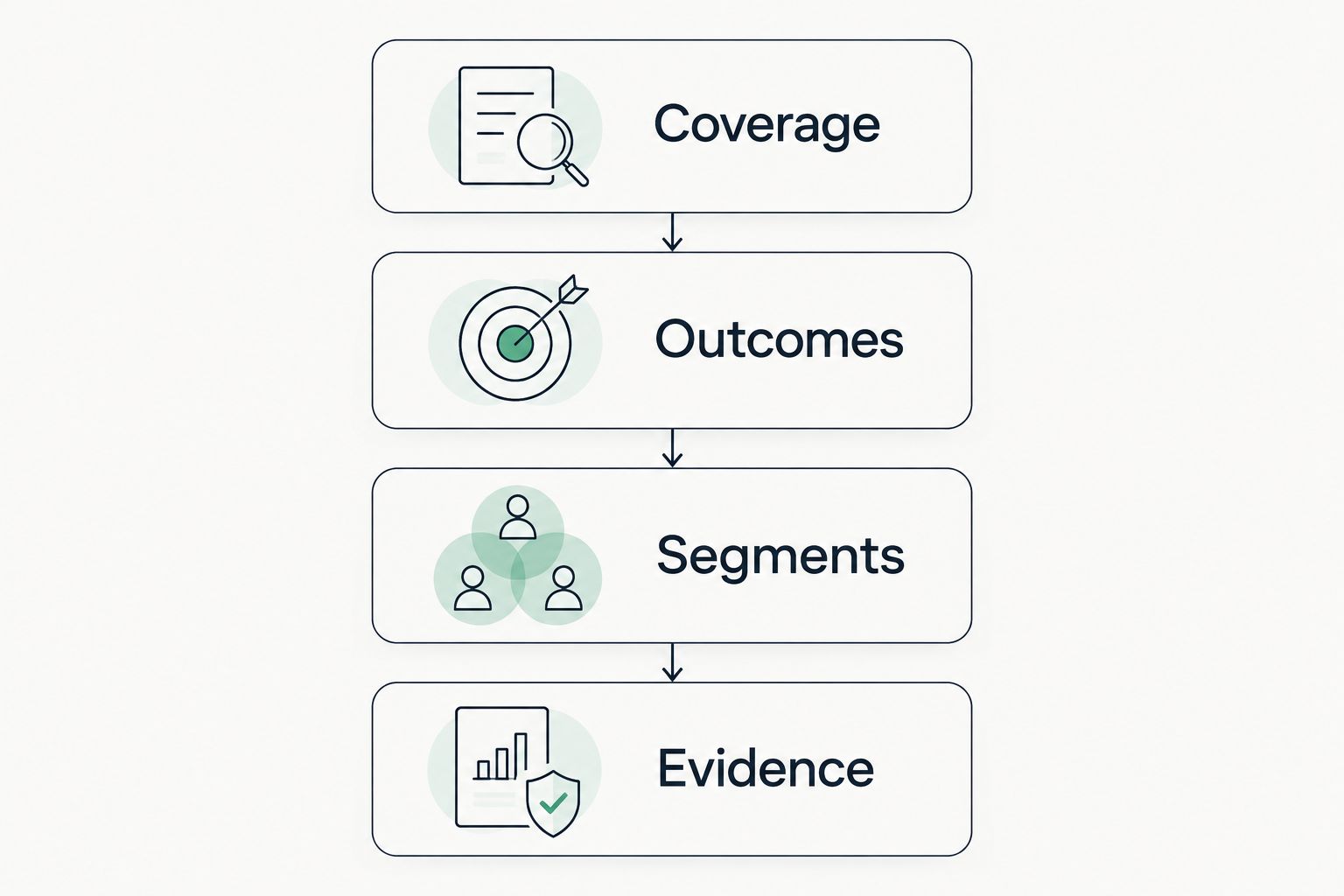
Start with coverage, then outcomes, then the evidence behind them. This order stops a collection failure from looking like a competitive loss.
- Create a Coverage section showing successful answers, attempted observations and the latest observation date.
- Create an Outcomes section with mention, citation and recommendation rates. Place the successful-answer count beside the rates.
- Create a Segments section comparing outcomes by engine and prompt group. Retain the same metric definitions in every chart.
- Create an Evidence table containing prompt ID, engine, observation date and answer reference. Make it possible to investigate a change without searching the spreadsheet manually.
Expected result: A reader can determine whether the data is current, identify the changed outcome and inspect the supporting observations.
Validate before sharing
Select 10 observation rows as a practical spot-check, or inspect every row if the dataset is smaller. Reclassify them from the original answers and compare your flags with the sheet.
Next, reconcile the successful-answer count for one engine and one date range. Check each numerator against the matching rows. A dashboard that looks right but cannot reproduce those totals is not ready for leadership.
Test viewer access separately from editor access. Use Share to grant the intended audience permission, and confirm that the report's data credentials expose only the approved dataset. Do not publish raw answers simply because they make debugging easier.
Second variant: update the dashboard after each collection batch
Scheduled staging is appropriate only after you verify an upstream method for obtaining the records. This section describes the data contract and update process, not an undocumented product integration.
- Retrieve records using the documented method available to your team. Preserve source identifiers and observation timestamps.
- Validate required fields, allowed engine names and binary outcome values before publishing the batch.
- Check
observation_idagainst existing rows. Append new observations; update an existing observation only when correcting that record. - Log batch success, failures and the latest ingestion timestamp outside the answer-level metrics.
- Check the Looker Studio report after the source update. Confirm that the new date and successful-answer count appear before announcing the refresh.
Expected result: New collection batches reach the same reporting table without rebuilding charts. Reprocessing a batch does not create duplicate observations.
Keep historical answers rather than replacing yesterday's rows with today's results. An answer change is a new observation, not an edit to the past. For your 2026 reporting workflow, assign an owner to collection failures as well as dashboard maintenance.
Troubleshooting
Dates appear as text or charts omit records
Check that the spreadsheet contains consistently typed dates rather than mixed text formats. Correct the source values, then inspect the Looker Studio field type and report date range. Confirm that the date range uses observed_at.
Rates exceed their logical range
Check for duplicate observations, citation-level rows inside the answer table or outcome flags greater than 1. Reconcile numerator and denominator within the same filters. Do not hide a modelling error by changing the chart scale.
Figures rise after adding citation details
A join can repeat each answer once per citation. Remove the detail join from answer-level scorecards, or aggregate the detail table to a unique observation before joining it. Keep citation counts separate from citation rates.
The sheet changed but the dashboard did not
First confirm that the report points to the correct worksheet and that the ingestion actually completed. Then inspect data freshness and refresh the report. Chart refresh cannot repair an upstream batch that never reached the sheet.
Viewers see an access error
Check report permissions, data source credentials and spreadsheet access under the chosen credentials arrangement. Test with a viewer account rather than relying on your editor session. Avoid broadening source access beyond what the reporting audience needs.
Customise your workflow
Add a competitor table only after defining its row structure. If you record one row per brand per answer, calculate answer coverage from unique observations, not the expanded brand-row count.
Keep referral traffic in a separate dataset. A citation without a click still counts as visibility, while a referred session measures a website visit. Align dates and segments for side-by-side reporting; do not imply that a shared date proves attribution.
For Koalr AI visibility reporting, prioritise evidence-backed actions: inspect the prompts where competitors are recommended, identify the sources cited and assign a content or positioning change. A dashboard should produce an investigation queue, not just a monthly screenshot.
FAQ
How do I set up a Koalr Looker Studio integration?
Use a validated Google Sheets table as the reporting handoff, then connect it through Looker Studio's Google Sheets connector. Obtain or record the answer observations through a method you have verified; this workflow does not require a native connector.
Does this workflow require a Koalr API?
No, the manual staging workflow does not require an API. Scheduled collection requires a documented access method, but the spreadsheet and dashboard configuration remain the same.
Can Looker Studio collect new AI answers automatically?
The Google Sheets connector reads spreadsheet data; it does not collect new AI answers. Collection and ingestion must happen upstream before the dashboard can show new observations.
What's the difference between a mention and a citation?
A mention names the brand, while a citation identifies a supporting source. In this dashboard model, the citation flag specifically records an answer citing a page on the tracked brand's domain.
How do I calculate AI recommendation rate?
Divide successfully collected answers explicitly recommending the tracked brand by all successfully collected answers in the same scope. Do not count failed collection attempts as answers without recommendations.
Why do my dashboard totals change after blending data?
A blend can multiply answer rows when one observation matches several citation or brand records. Keep answer-level metrics separate or reduce the joined table to the required unique key before blending.
Can I compare AI visibility with referral traffic?
Yes, display them side by side with aligned dates and clearly labelled definitions. Visibility records appearances in answers; referral traffic records visits, so neither metric replaces the other.
One last thing
Put collection coverage next to your headline rate. Losing unsuccessful checks from view makes the dashboard easier to read but harder to trust. In 2026, a recommendation-rate change should trigger an evidence check before it triggers a content rewrite.